Elements and 3D view in the blank display
For precise editing of blanks, choose the view that is most helpful for the current step. To improve visibility, show or hide elements.
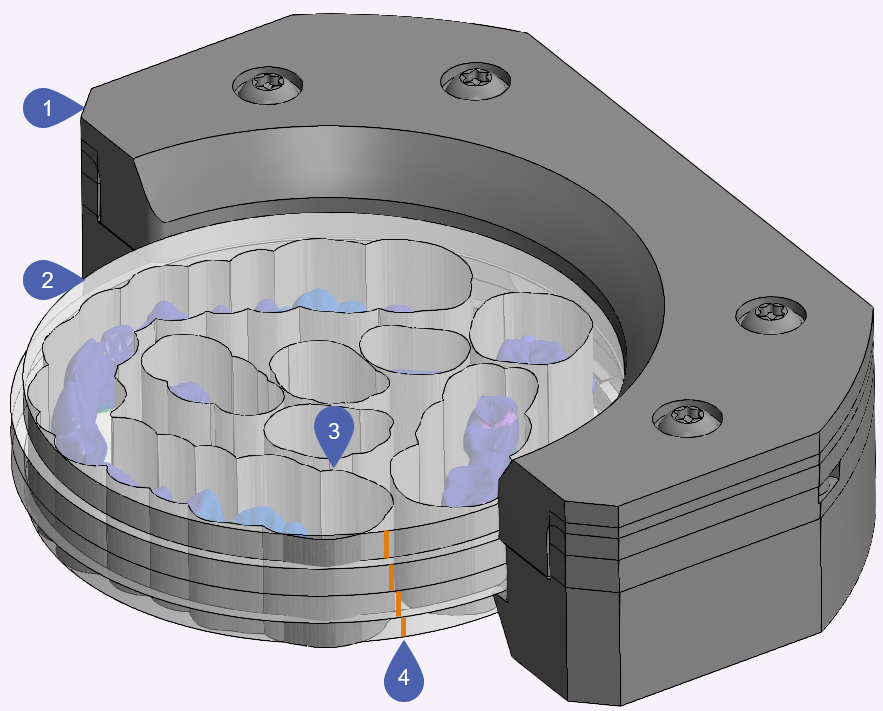
Example: disc with 4 color layers in the blank holder of the R5
|
1 |
Blank holder |
|
2 |
Blank |
|
3 |
Edge of the tool space |
|
4 |
Color layers (only if activated for the blank) |
Icons for controlling the blank display
Use the following icons to control the view of the blank display:

Static 2D top view

Bottom view with adjustable 3D view

Side view with adjustable 3D view
Use the following icons to control the visibility of individual elements:

Show/hide the blank holder

Show/hide the blank

Show/hide color layers

Show/hide tool areas


